Step-by-Step Guide
How to Install Your eSIM
Choose your device type and follow the step-by-step instructions to activate your FlySimGo eSIM in minutes.
Make sure your iPhone is unlocked, connected to Wi-Fi, and that you haven't already installed the eSIM. Each QR code can only be used once.
- 1
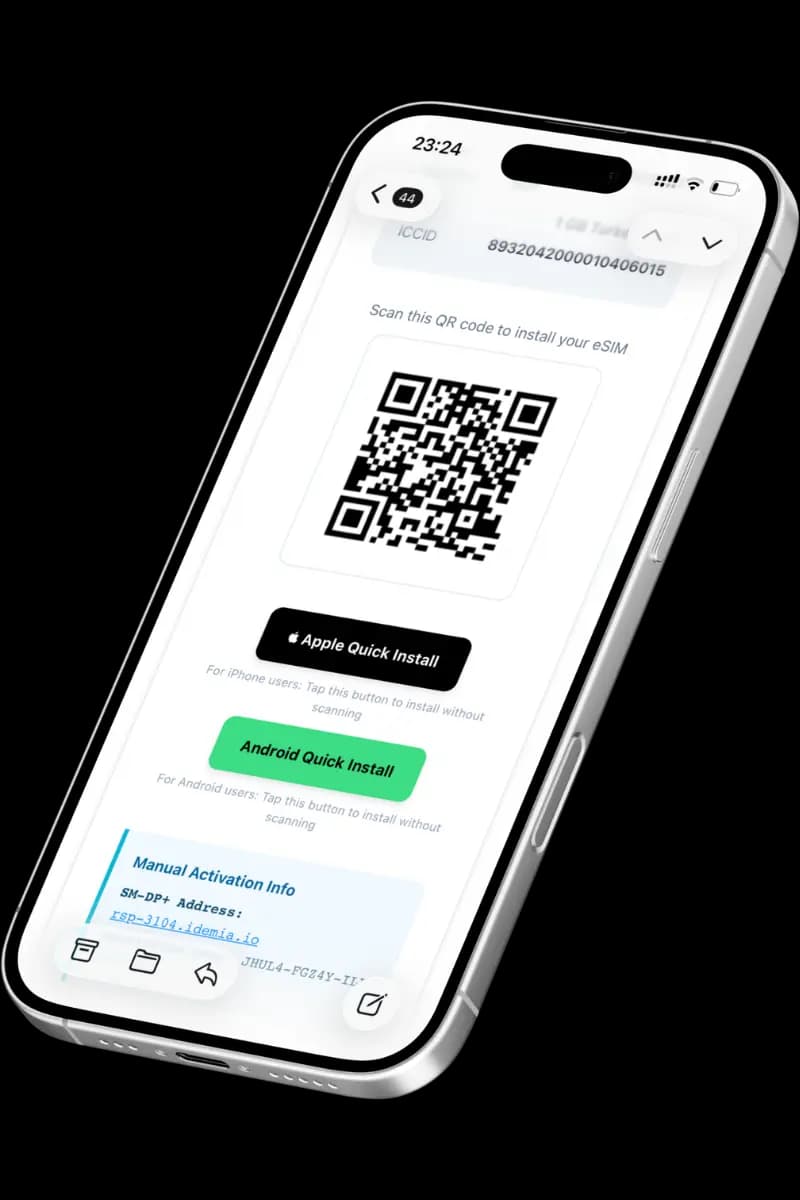
Tap "Apple Quick Install"
Tap the black button labelled Apple Quick Install in your confirmation email.
- 2
Confirm installation
iOS will show an "Install eSIM" dialog. Tap Add Cellular Plan to confirm.
Step 1 of 1